
If you want to connect Gemini to a website, app, automation or custom script, you need something different from the normal Gemini chat interface: a Gemini API key.
The key authenticates requests sent from your software to the Gemini API. Google AI Studio is the easiest place for most beginners to create and manage that credential.
One distinction matters immediately: a Gemini API key is not the same as a Google AI Pro subscription. Google AI Pro is a consumer subscription for eligible Gemini features. The Gemini API has its own projects, quotas and billing.
This guide explains how to get a Gemini API key, test it, understand free versus paid usage and keep the key secure.
Quick Answer: How Do You Get a Gemini API Key?

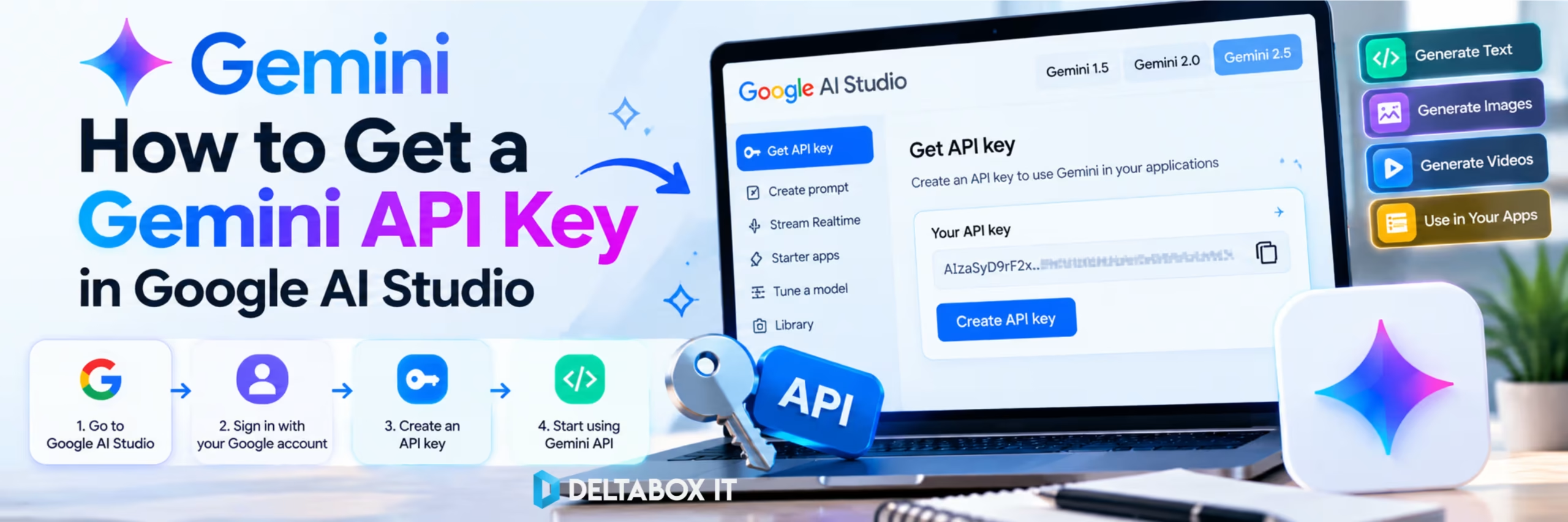
The basic process is:
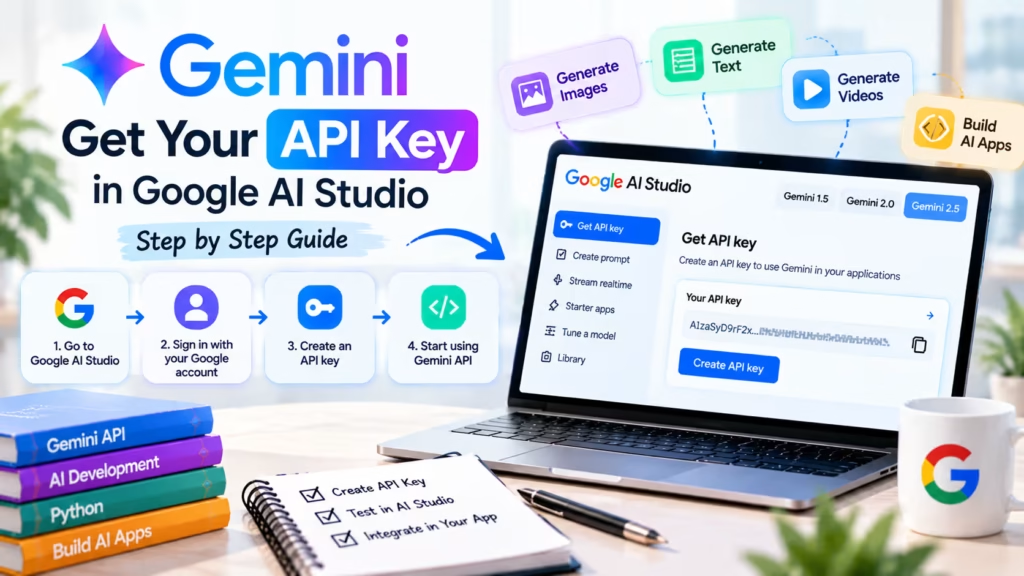
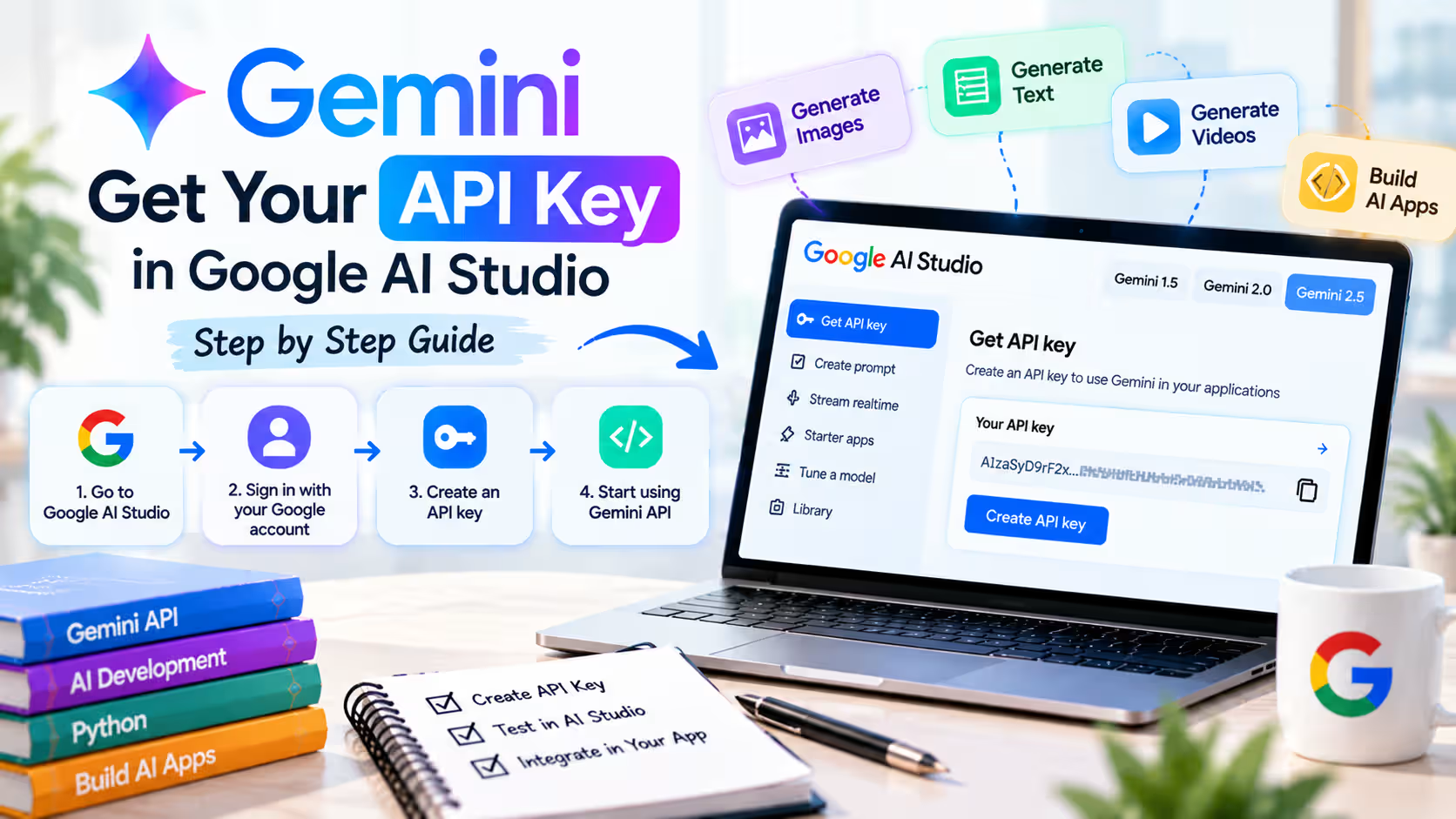
- Sign in to Google AI Studio.
- Open the API Keys page.
- Use the key created for your default project or select Create API key.
- Copy the key and store it securely.
- Add it to your development environment.
- Test one small API request.
Google AI Studio can automatically create a project and API key for new users.
What Is a Gemini API Key?
A Gemini API key is a credential your application uses when calling Google’s Gemini API.
Suppose you build a study assistant. A user types a question into your app, your backend sends the prompt to Gemini, and Gemini returns a response. The API key authenticates that request and connects the usage to the relevant project.
Every key is associated with a Google Cloud project used for permissions, quota and billing.
New keys created through Google AI Studio now use Google’s newer authorization-key approach by default. For beginners, the workflow remains simple: create the key in AI Studio and keep it private.
Gemini API Key vs Google AI Pro
These are separate products.
Google AI Pro provides paid Gemini features in supported consumer experiences.
The Gemini API is for developers who want to call Gemini from their own code or applications.
Buying Google AI Pro does not automatically give you Gemini API credits. Creating an API key also does not upgrade your Gemini app to Google AI Pro.
If you only want to chat with Gemini or analyse files, you may not need the API.
If you want to build a chatbot, connect Gemini to software or automate a workflow, the API is the relevant option.
Step 1: Open Google AI Studio
Sign in to Google AI Studio with the Google Account you want to use for development.
New users may already see a default project and API key. If a key exists, check which project it belongs to before using it.
For separate applications, consider separate keys or projects. This makes it easier to rotate a credential or disable access if one application develops a security problem.
It also makes usage easier to understand when you eventually have several projects using Gemini.
Step 2: Create or Copy the API Key
Open the API Keys page inside Google AI Studio.
If AI Studio has already created a key for you, copy it. Otherwise, choose Create API key and follow the project-selection process.
Once the key appears, store it securely.
Do not put it in a public document, screenshot, forum post or GitHub repository.
Anyone who obtains a usable key may consume your project’s quota and, when billing is enabled, potentially create unexpected charges.
Treat an API key the same way you would treat a password.
Step 3: Store the Key as an Environment Variable
For local development, it is better to use an environment variable instead of hardcoding the credential directly into your source code.
Common variable names supported by Gemini tooling include:
GEMINI_API_KEY
GOOGLE_API_KEY
Gemini client libraries can detect these automatically. When both are configured, GOOGLE_API_KEY currently takes precedence.
On Windows, for example, you can create an environment variable named GEMINI_API_KEY and place your credential in its value.
The important principle is simple:
Keep secrets separate from code that may later be uploaded, shared or committed to version control.
For production systems, use an appropriate server-side secret-management system.
Step 4: Test Your First Gemini API Request
After configuring the key, make one simple API request before building a larger project.
Google provides developer tooling for languages including Python and JavaScript, as well as REST access.
With Python, for example, you can use Google’s current Gen AI package and create a client that reads your key from the environment.
Start with a simple prompt such as:
Explain cloud computing in three sentences.
If Gemini returns a response successfully, your project, credential and local environment are working.
Do not immediately add file uploads, tools, function calling and several other features at once.
Testing authentication first makes later troubleshooting much easier.
Do You Need to Pay for the Gemini API?
Creating a Gemini API key does not automatically create a charge.
The Gemini API provides free-tier access for eligible models and features, subject to Google’s current quotas and regional availability.
However, free tier does not mean every Gemini model or capability is free.
Models can have different rate limits, features and pricing. Some capabilities require paid API usage.
If your project needs paid access, you configure billing for the relevant project. Google’s current Gemini API billing system can use different billing arrangements depending on the account.
Before deploying an application to a large number of users, check the current model pricing and quota.
A workflow that is inexpensive during personal testing can behave very differently when hundreds of users begin sending requests.
How to Monitor Gemini API Usage
Google AI Studio includes a Usage dashboard for reviewing API activity.
This becomes increasingly important once your project moves beyond basic testing.
A public application can generate requests much faster than a private script.
API costs can also depend on factors such as the selected model, input size, output size and additional features. Processing a large document may therefore consume significantly more resources than answering a short question.
For paid projects, configure appropriate billing alerts and review usage regularly.
Monitoring early is easier than discovering unexpected usage after an application becomes popular.
Never Expose Your Gemini API Key in Front-End Code
One of the most important API security rules is:
Do not place a production Gemini API key directly inside browser-side JavaScript or a mobile application.
Client-side code can be inspected, which means embedded credentials can potentially be extracted.
For a conventional web application, a safer structure is:
Browser or app → your backend → Gemini API
Your backend stores the actual credential and sends the authenticated request to Gemini.
Google also provides short-lived authentication approaches for certain real-time API workflows, but beginners building standard applications should generally start with a backend architecture rather than exposing a long-lived key.
What If Your Gemini API Key Is Leaked?
Replace it.
If you accidentally publish a key or suspect that another person obtained it, create a replacement credential, update your application and disable or remove the compromised key after confirming the replacement works.
Also review usage and billing activity.
Google can identify and block some leaked Gemini API credentials.
Once a secret has been exposed publicly, assume somebody may already have copied it. Removing the screenshot or repository entry does not make the original credential private again.
Why Is My Gemini API Key Not Working?
Several issues can cause a Gemini API request to fail.
The key may belong to the wrong project, the project may have reached a quota, the selected model may not be available, billing may require attention or the credential may have been blocked.
Older API keys can also behave differently because Google has tightened Gemini API key security.
If a previously working key suddenly fails, check its status in Google AI Studio before rewriting your application.
Also verify the model name in your code. Gemini model names, availability and lifecycle status can change over time.
Google AI Studio vs Gemini API: What Is the Difference?
Google AI Studio and the Gemini API are connected, but they are not the same thing.
Google AI Studio is the developer interface where you can experiment with models and prompts, create projects and manage API keys.
The Gemini API is the programmatic service your software calls.
You can therefore use AI Studio to prototype an idea and then use the API to place that functionality inside your own application.
AI Studio can be useful for testing prompts before writing substantial code.
If you connect paid API usage or use paid capabilities, the applicable Gemini API billing rules still apply.
What Can You Build With a Gemini API Key?
Once authentication works, Gemini can become part of much more than a basic chatbot.
Depending on the model and available features, developers can work with text generation, multimodal inputs, structured outputs, tools, function calling, image-related workflows and agent-style applications.
A university developer might build a study assistant.
A company could summarise support tickets.
A content team could classify documents or automate repetitive analysis.
The API becomes especially useful when AI needs to operate inside another product or workflow instead of remaining in a separate Gemini chat window.
If you are comparing Gemini with other platforms for development, research or productivity, explore AI tools available through DeltaBox IT.
Frequently Asked Questions
Is a Gemini API Key Free?
Creating an API key itself does not require a Google AI Pro subscription. Eligible Gemini API models provide free-tier usage, while paid models and higher usage follow Google’s current API pricing and quota rules.
Does Google AI Pro Include Gemini API Credits?
No. Google AI Pro and Gemini API billing are separate. A Google AI Pro subscription should not be treated as an API-credit package.
Can I Create a Gemini API Key Without Coding?
Yes. You can create and manage the key through Google AI Studio without writing code. Coding becomes necessary when your own application or integration needs to call the API.
Can I Put My Gemini API Key in JavaScript?
Do not expose a long-lived production key inside browser-side JavaScript. Keep the actual credential on your backend or use an appropriate supported short-lived authentication method for eligible workflows.
Does DeltaBox IT Sell Gemini API Keys?
Gemini API keys should be created inside your own Google AI Studio or Google Cloud project. DeltaBox IT subscription products should not be presented as Gemini API keys or API credits.
Final Thoughts
Getting a Gemini API key is straightforward. Using it securely is the more important part.
Create the key in Google AI Studio, confirm the correct project, keep the credential outside your source code and test one simple request before developing a larger integration.
Use eligible free-tier access while it meets your development needs, then configure paid billing only when the application requires higher usage or paid capabilities.
Most importantly, remember the distinction between the Gemini API and Google AI Pro.
Google AI Pro is a consumer subscription. The Gemini API is the developer service for building Gemini into your own software.
Once that difference is clear, Google AI Studio becomes a practical starting point for moving from Gemini experimentation to real applications.
“`