


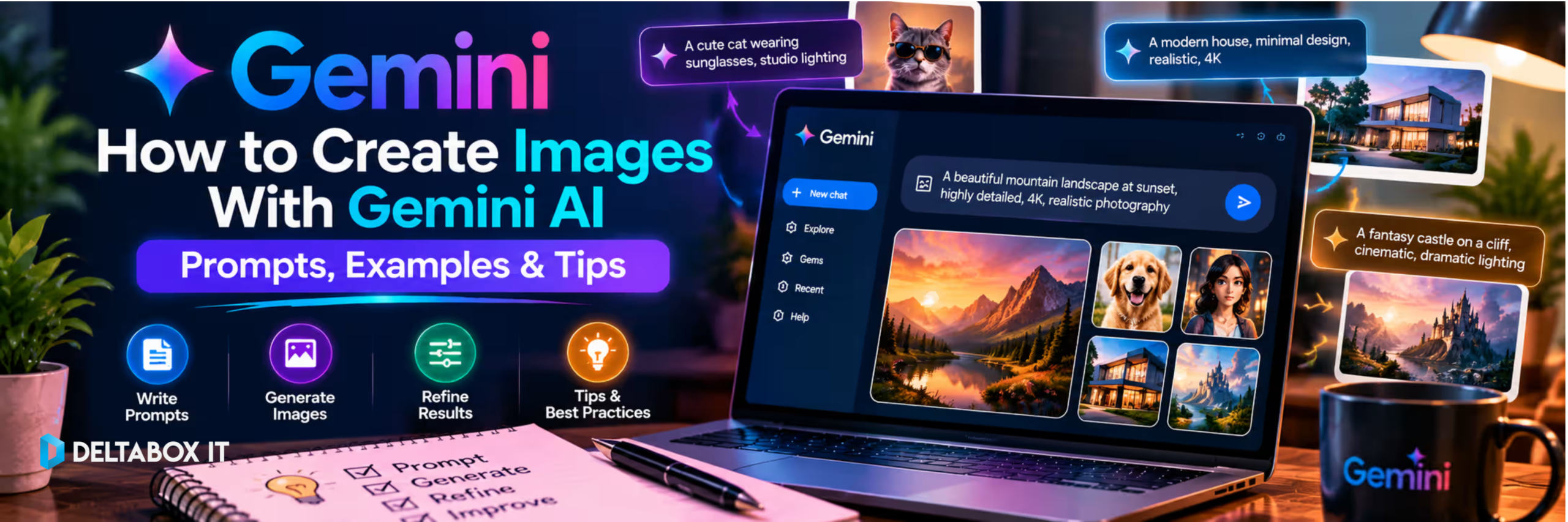

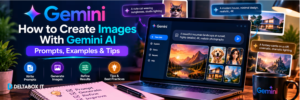
Gemini can turn a short text description into an image, but the quality of the result depends heavily on how clearly you describe what you want.
If you are wondering how to make a Gemini AI photo for a blog, presentation, social post or creative project, you do not need complicated prompt engineering. You need to define the subject, setting, visual style and composition clearly enough for Gemini to understand the image you have in mind.
Google currently uses its Nano Banana image-generation models inside Gemini Apps. Gemini can create new images, edit supported images and, in eligible workflows, combine uploaded images into a new result.
This guide explains how to use the Gemini image generator, how to write better Gemini image prompts and how to improve a result without starting over every time.
Quick Answer: How Do You Create an Image With Gemini?
The basic workflow is simple:
- Open Gemini on the web or mobile app.
- Sign in to your Google Account.
- Open the image-generation experience or ask Gemini to create an image.
- Describe the subject, setting and style.
- Generate the image.
- Ask for specific edits if the first version is not right.
For example:
Create a realistic 16:9 image of a university student studying with a laptop in a modern library. Use natural window light, a clean academic atmosphere and shallow depth of field. Leave empty space on the left for a headline. No visible brand logos.
This works better than simply asking Gemini to “create a student image” because the prompt defines the purpose and composition.
1. Start With a Clear Subject
Every image prompt should first answer:
What is the main subject?
It can be a person, product, object, landscape or concept.
Instead of:
Create a business image.
try:
Create an image of a young entrepreneur reviewing sales data on a laptop in a small modern office.
The second prompt gives Gemini a clear focal point.
If the subject is a person, include only the visual details that matter, such as profession, clothing, posture or activity. If it is a product, describe its material, position and environment.
More detail is useful only when it changes the result.
2. Add an Action and Setting
A subject alone can produce a generic image. Giving the subject something to do creates a clearer story.
Compare:
Create an image of a student.
with:
Create an image of a university student highlighting notes while preparing for an exam.
The same principle applies to the environment.
Create a researcher reading printed journal papers in a bright university library.
Or:
Create a developer working on code in a dark modern workspace with two monitors.
For website images, you can also control the background:
Keep the background minimal and leave clean negative space on the right for title text.
This makes the image easier to use in a featured banner or landing page.
3. Choose the Visual Style and Composition
Gemini can create different visual styles, so specify the look you want.
Useful directions include photorealistic photography, clean vector illustration, watercolor, cinematic photography, 3D render or minimal product photography.
For example:
Create a clean vector illustration of a student using an AI assistant on a laptop. Modern educational style, simple shapes and professional composition.
Avoid combining conflicting styles. Asking for “photorealistic watercolor 3D cartoon” gives the model unclear direction.
Composition matters too, especially for website and social content.
You can specify:
Position the person on the right and leave empty space on the left.
Use a top-down view.
Make the product the clear central focal point.
Use a 16:9 landscape composition.
These instructions reduce the amount of editing needed later.
4. Use a Simple Gemini Image Prompt Formula
A practical structure is:
Create + subject + action + setting + style + composition + restrictions
For example:
Create a photorealistic image of a university student using an AI assistant on a laptop in a modern study room. The student is taking notes while reviewing information on screen. Use natural daylight and realistic colours. 16:9 landscape composition, subject on the right, clean negative space on the left. No visible logos or text.
The best Gemini image prompts are not necessarily long.
They are specific about the details that affect the final visual.
If the image is for a website banner, composition and negative space may matter more than tiny background details.
If it is a product visual, lighting, angle and surface may matter more.
Think about how the finished image will actually be used before writing the prompt.
5. Edit an Existing Image Instead of Starting Again
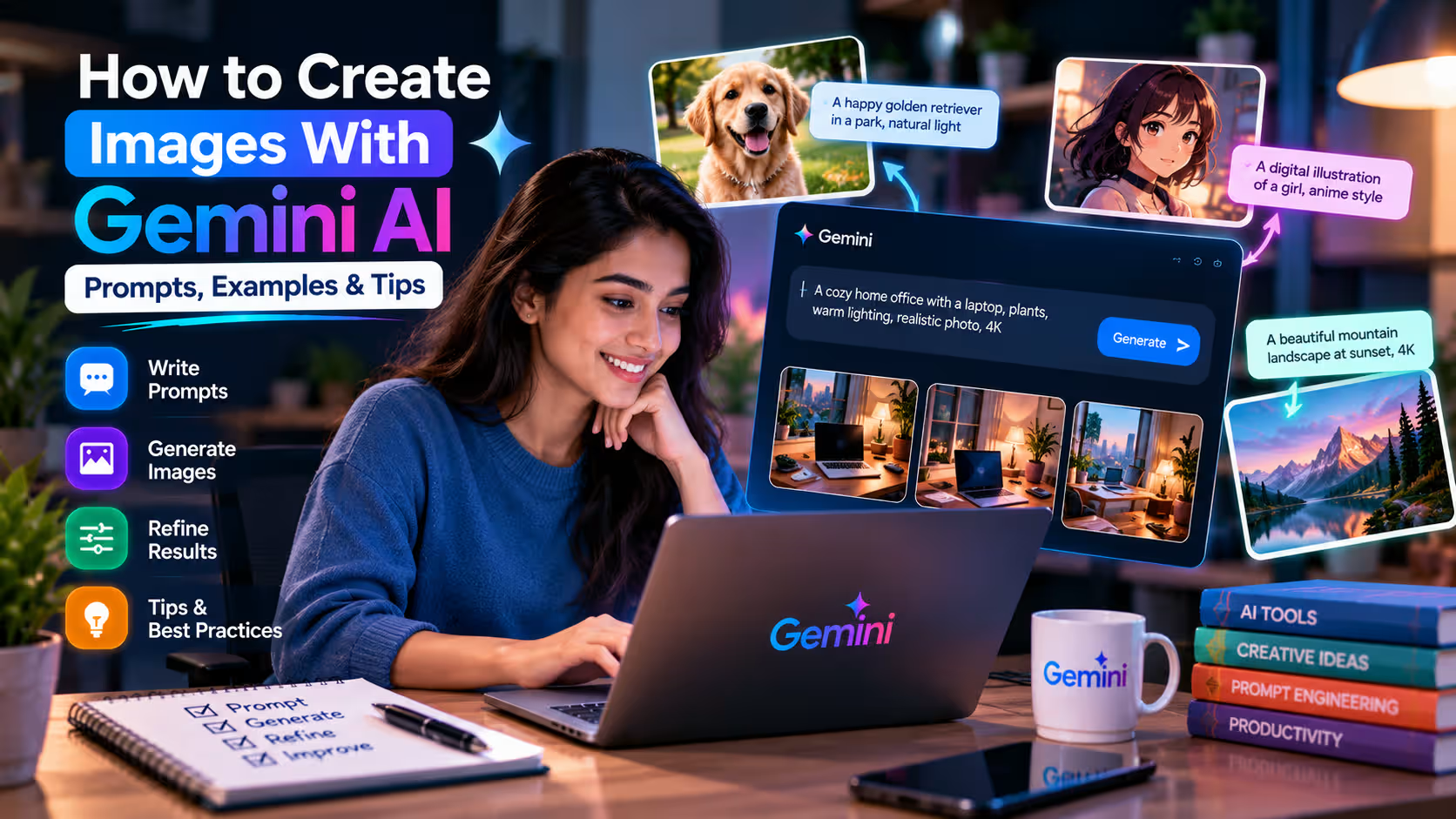
Gemini can also edit generated or uploaded images.
Instead of regenerating everything, tell it exactly what needs to change:
Keep the composition the same but remove the people in the background.
Change the shirt from red to blue.
Make the room brighter.
Keep the subject unchanged but add more empty space on the left.
Specific edits usually work better than:
Make this better.
This approach is useful when the first image is mostly correct but one or two details need improvement.
For example, you might like the subject and lighting but dislike the background. Asking Gemini to change only the background gives it clearer instructions and may preserve more of the original composition.
When editing a real photograph, make sure you have the right to use and modify it, particularly for commercial content.
6. How to Handle Text Inside Gemini Images
Current Gemini image models are designed to render text more accurately than older AI image systems, but important text should still be checked carefully.
If text is necessary, keep it short.
For example:
Create a modern poster with the headline “Study Smarter” in large clean typography.
For blog featured images, banners and ads, it is often better to generate the visual without text and add the final typography later in Canva, Photoshop or another design tool.
This gives you better control over spelling, font choice, alignment, spacing and responsive cropping.
For example, instead of asking Gemini to create an entire promotional banner with several paragraphs of text, generate the visual background first and add the marketing copy separately.
7. Fix Common Gemini Image Problems
If the first result is wrong, identify the exact problem rather than rewriting the entire prompt.
If the image is too busy:
Simplify the background and remove unnecessary objects.
If the subject is too small:
Bring the camera closer and make the person the main focal point.
If the image looks artificial:
Use natural proportions, realistic skin texture, soft daylight and documentary-style photography.
If the composition is wrong:
Move the subject to the right third and leave clean space on the left.
Incremental edits help preserve the parts of the image you already like.
It also makes your prompts easier to troubleshoot because you know exactly which instruction changed the result.
8. Gemini Free vs Google AI Pro for Image Creation
You can start creating images with Gemini without immediately purchasing a paid plan.
Free access is suitable for learning how prompts work and generating images occasionally. Paid Google AI plans become more relevant when image creation is part of a regular workflow and you need higher usage capacity or additional image features.
Google currently uses Nano Banana 2 for image generation in Gemini Apps. Eligible paid subscribers can also use Nano Banana Pro to redo supported images, while Google AI plans can provide higher-resolution image downloads in supported workflows.
A sensible rule is:
Stay with Free until a real usage or feature limitation begins slowing down useful work.
Bangladesh users who regularly use Gemini for creative work, research and productivity can review Google AI Pro / Gemini AI in Bangladesh through DeltaBox IT.
Check the live product page for the current package type, validity and activation conditions before ordering.
If you are comparing Gemini with other AI tools for design, writing or research, browse the wider AI tools available through DeltaBox IT.
DeltaBox IT is an independent third-party digital subscription provider and does not own, operate or represent Google or Gemini.
Practical Gemini Image Prompt Examples
Blog Featured Image
Create a professional 16:9 image about AI-powered research. Show a researcher using a laptop with documents and data visuals in a modern workspace. Realistic photography, clean professional atmosphere, subject on the right, empty space on the left, no logos.
Ecommerce Product Visual
Create a premium product photograph of a minimalist smartwatch on a clean dark surface. Soft studio lighting, realistic reflections, front three-quarter angle, luxury technology style, no text or logos.
These examples work because they describe both the visual idea and how the image will be used.
You can apply the same structure to YouTube thumbnails, educational graphics, presentation visuals, social media images or website banners.
Frequently Asked Questions
Can Gemini AI Generate Photos?
Yes. Gemini can create photorealistic-style AI images as well as illustrations, product concepts and other visual styles. The result is AI-generated rather than a photograph captured by a camera.
How Do I Make a Gemini AI Photo Look Realistic?
Describe realistic lighting, natural proportions, camera framing, environment and texture. Avoid conflicting visual styles and refine specific problems after the first generation.
Can I Upload a Photo and Ask Gemini to Edit It?
Yes. Gemini supports image editing in eligible accounts and workflows. You can upload an image and request specific changes. Some editing features have age, account and availability restrictions.
Is Gemini Image Generation Free?
Gemini provides image-generation capabilities to eligible free users, subject to current account, region and usage limits. Paid Google AI plans provide additional access and higher limits for supported features.
Is Google AI Pro Required for Gemini Image Generation?
No. Beginners can start with free image generation where available. Google AI Pro becomes more relevant when higher limits or paid image capabilities solve a recurring need.
Final Thoughts
Learning how to make a Gemini AI photo is mainly about describing the image you actually need.
Start with the subject. Add the action and setting. Define the style and composition. Then refine individual details instead of generating everything from scratch.
For practical work, think beyond appearance.
A website image may need negative space for a headline. A product image may need a clean background. A social image may need one obvious focal point.
Gemini can accelerate the creative process, but you still provide the direction.
The best prompt is not the longest one. It is the prompt that makes the purpose, composition and important constraints clear.











One thought on “How to Create Images With Gemini AI: Prompts, Examples & Tips”