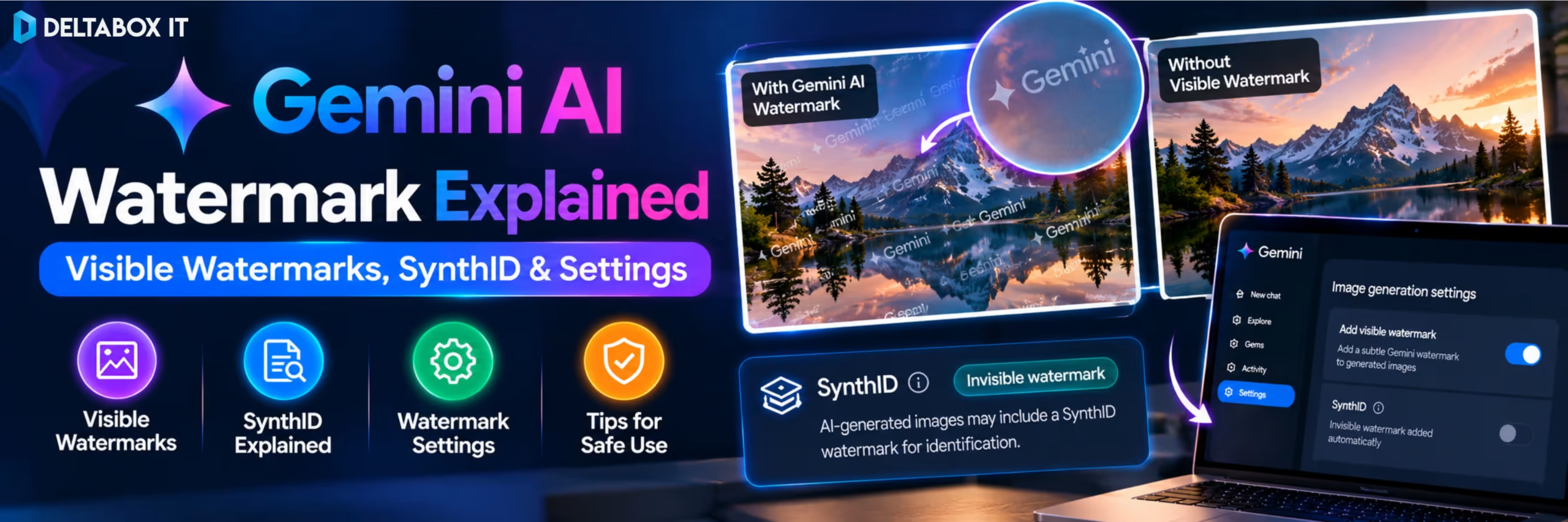

You create an image with Gemini, download it and notice a small Gemini mark on the visual.
Naturally, the next question is: how do you remove the Gemini watermark?

Google now provides an official watermark setting inside Gemini Apps that can control whether a visible watermark appears on newly generated media. However, turning that setting off does not remove every form of AI identification.
Gemini-generated and Gemini-edited media can still contain SynthID, Google’s invisible AI watermark, along with Content Credentials designed to provide information about how the media was created or edited.
That distinction is important.
If your goal is simply to create a clean blog banner, presentation image or social-media visual without a visible Gemini logo, you may be able to disable the visible watermark directly in Gemini’s settings.
If your goal is to remove SynthID or hide the fact that content was AI-generated, that is different. SynthID is specifically designed as a transparency mechanism and is not controlled by the visible-watermark setting.
This guide explains how Gemini watermarks work, how to turn off the visible watermark, what SynthID does and what changes when you edit or download an AI-generated image.
Quick Answer: Can You Remove the Gemini Watermark?
Yes—the visible Gemini watermark can now be turned off through Gemini Apps where the setting is available.
On desktop:
Gemini → Settings → Media watermark → Turn off
This affects the visible watermark used on newly generated Gemini media.
It does not disable:
- SynthID;
- Content Credentials;
- other AI provenance signals associated with the generated media.
The simplest way to remember the difference is:
Visible watermark = something you can see.
SynthID = an invisible signal embedded for AI identification.
What Types of Watermarks Does Gemini Use?
Gemini uses more than one system to identify AI-generated media.
| Identification Method | Visible? | Purpose | Can Gemini’s Watermark Setting Disable It? |
|---|---|---|---|
| Gemini visible watermark | Yes | Makes AI-generated media visibly identifiable | Yes, where the setting is available |
| SynthID | No | Invisible AI-generation identification | No |
| Content Credentials | Normally not visually displayed on the image | Provides provenance information about creation or editing | No |
These systems are related to transparency, but they work differently.
Turning off one does not automatically remove the others.
What Is the Visible Gemini Watermark?
The visible watermark is the Gemini branding or indicator that can appear directly on media generated through Gemini Apps.
Google has used visible marking to make AI-created content easier for viewers to recognise.
In the past, many users had no direct way to disable that visible indicator inside the Gemini consumer app. Google’s current Gemini Apps settings now provide a Media watermark control for supported users.
When enabled, visible marking can appear on newly generated images and as an overlay on other supported generated media.
When disabled, the visible watermark is removed from future eligible generations.
This is particularly useful when creating professional visual assets where a visible platform logo would interfere with the design.
How to Remove the Visible Gemini Watermark Officially
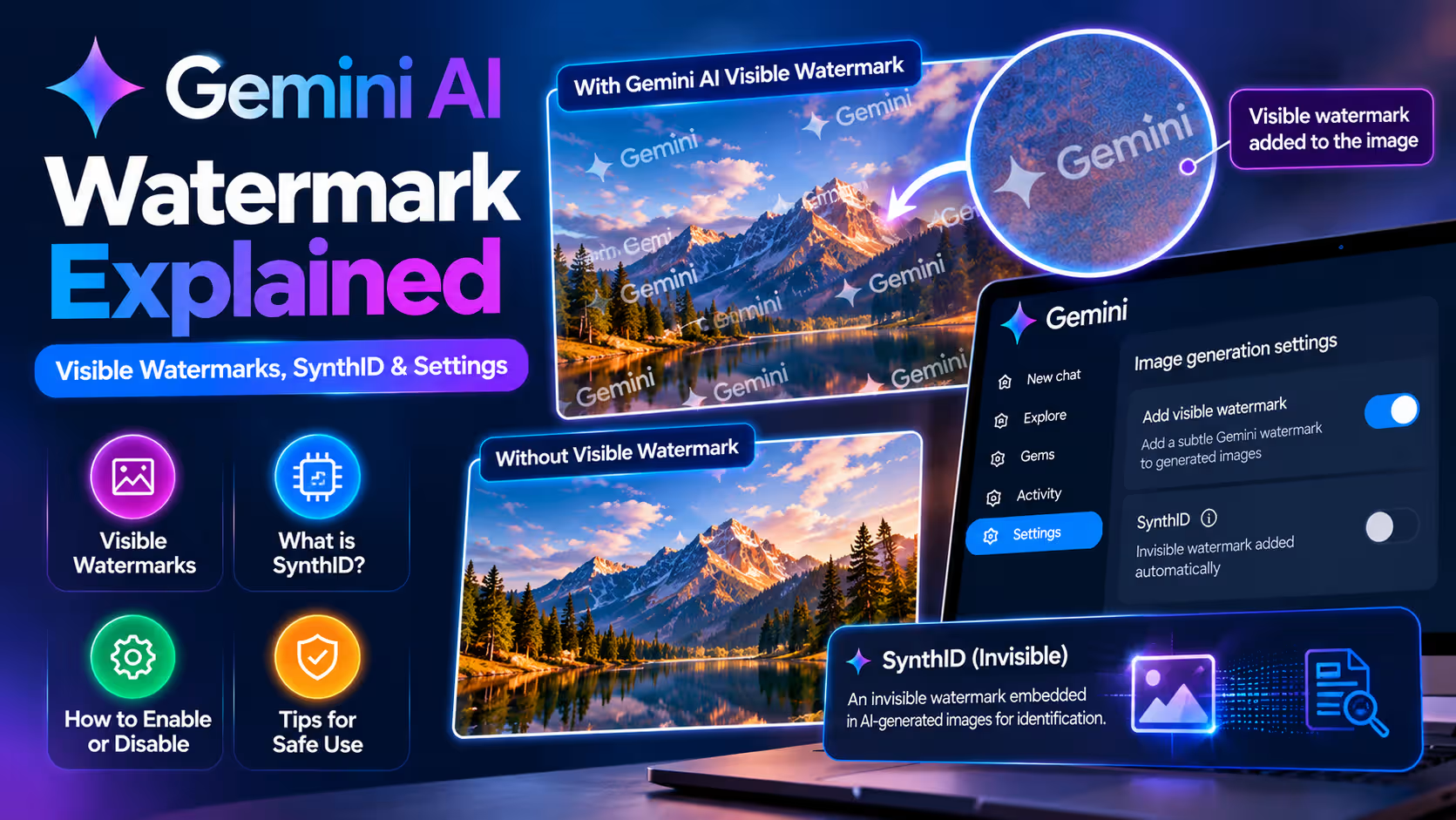
You do not need to crop the image or use an external watermark-removal website when the official setting is available.
On a computer:
- Open Gemini.
- Sign in to your Google Account.
- Open Settings.
- Find Media watermark.
- Turn the visible-watermark setting off.
- Generate the image again.
On Android, open Gemini, go to the menu and then Settings, where the Media watermark control can be managed when available.
The setting applies across supported media generated through Gemini Apps.
If you already downloaded an image with the visible watermark, do not assume changing the setting will modify the existing file. The setting is intended to control subsequent generations, so generating the image again after disabling the watermark is the cleaner approach.
Why Can’t I Find the Media Watermark Setting?
Feature availability can depend on account, subscription, country and rollout status.
Google currently applies additional restrictions in some markets. For example, its help documentation specifically states that users in India, South Korea and Vietnam only see this setting with an AI Ultra subscription; otherwise visible watermarks are automatically applied.
Bangladesh is not currently listed among those specific exceptions, although Google can change regional availability and product rules.
If you cannot find the setting, first make sure you are using the current Gemini web or mobile experience and that you are signed in to the correct account.
Also remember that the setting applies specifically to Gemini Apps. AI image functionality inside another Google product may follow different watermark rules.
What Is SynthID?
SynthID is Google’s invisible digital watermarking technology for AI-generated media.
Unlike the visible Gemini logo, you cannot normally see SynthID by looking at an image.
The watermark is embedded into the generated media so compatible verification systems can identify that Google AI was involved in creating or editing it.
Gemini-generated images, videos and audio can contain SynthID.
Its purpose is provenance and transparency.
For example, someone viewing an image may not see a Gemini logo. But a supported verification system may still detect the SynthID signal and indicate that the image was created or edited using Google AI.
That means:
No visible watermark does not mean no AI identification.
Can You Turn SynthID Off?
No normal Gemini setting is provided for disabling SynthID.
The Media watermark option controls only the visible watermark.
Google specifically separates visible branding from SynthID and Content Credentials.
This distinction is important if you are searching for “how to remove Gemini logo” and assume that removing the visible mark makes the image indistinguishable from non-AI media.
It does not.
Google designed SynthID to remain detectable even after common changes such as resizing, compression or colour adjustment, although detection is not guaranteed after every possible transformation.
Trying to deliberately defeat provenance systems is also very different from simply choosing a clean visual output through Gemini’s official watermark setting.
For normal design work, the better approach is to use the platform’s supported settings and maintain appropriate disclosure where your publishing context requires it.
What Are Content Credentials?
Gemini also uses Content Credentials, based on the C2PA provenance standard.
Think of Content Credentials as information that can help describe where digital media came from and whether tools were involved in creating or modifying it.
This is different from SynthID.
SynthID is embedded into the media itself as an invisible watermark.
Content Credentials provide additional provenance information associated with the media.
Google increasingly uses these technologies together so that AI-generated content can remain useful for creators while still supporting transparency.
For the average Gemini user, you do not need to manage these technologies manually.
The practical point is simply that removing a visible logo does not remove every provenance signal associated with the image.
How Can Someone Check Whether an Image Was Made With Gemini?
Gemini includes AI-content verification capabilities.
A user can upload supported media and ask questions such as:
Was this image created or edited by Google AI?
Gemini can check for supported provenance signals, including SynthID.
Google has also expanded SynthID verification beyond the Gemini app, reflecting a broader push toward identifying AI-generated media across its products.
This is another reason not to treat visible-watermark removal as a way of changing an image’s origin.
The visible mark is mainly a presentation choice. Provenance technology operates separately.
Does Cropping the Gemini Logo Remove SynthID?
No.
Cropping a visible logo and removing SynthID are two different things.
SynthID is not simply placed in the corner of the image.
It is an invisible signal embedded into the generated media.
Google designed SynthID to survive many common transformations such as resizing, compression and colour modifications.
Therefore, removing the visible Gemini logo through cropping or editing should not be treated as a method for removing AI provenance.
If your only concern is a clean design, use Gemini’s official visible-watermark setting instead of modifying the output solely to hide the logo.
Should You Remove the Gemini Logo From Professional Images?
It depends on why you want it removed.
Removing the visible watermark through Gemini’s supported setting can be reasonable when creating a clean blog banner, presentation graphic, concept image or marketing visual.
For example, a visible platform logo may look awkward inside a professionally designed website header.
That does not mean the content’s AI origin should be misrepresented.
Depending on where the image is published, disclosure requirements may come from an employer, client, marketplace, publisher, advertising platform or applicable law.
For professional projects, separate two questions:
Do I need the visible Gemini logo in the artwork?
and:
Do I need to disclose that AI was used?
Those are not necessarily the same issue.
Gemini Watermarks and Image Editing
Gemini can both generate new images and edit existing ones.
If you upload an image and ask Gemini to modify the background, change objects or substantially alter the visual, Google’s AI provenance systems may apply to the resulting media.
This is relevant because some users assume SynthID only applies to images created entirely from a text prompt.
Google’s current approach covers media generated or edited through Gemini’s AI models.
If you want to learn the image workflow itself, see How to Create Images With Gemini AI for prompts, composition techniques and editing tips.
Beginners can also review the broader How to Use Gemini AI guide before moving into more advanced creative workflows.
Does Google AI Pro Remove Gemini Watermarks?
Do not purchase Google AI Pro solely on the assumption that paying automatically removes every watermark.
Google’s current Gemini Apps system distinguishes the visible watermark setting from invisible SynthID.
Where the Media watermark control is available, users can manage visible-watermark behaviour through Gemini’s settings.
SynthID still remains part of Google’s AI-transparency system regardless of whether a visible logo appears.
Google has historically applied different visible-watermark behaviour across Free, Pro, Ultra and developer environments, and these rules continue to evolve.
Therefore, if watermark behaviour is important to your workflow, check the current Gemini settings and plan conditions rather than relying on an older comparison article.
Using Gemini Image Features in Bangladesh
Bangladesh users who rely on Gemini regularly for image creation, research and productivity can review the current Google AI Pro / Gemini AI subscription available through DeltaBox IT.
The live package page should be checked for the current activation method, subscription validity and applicable conditions before ordering.
Google controls Gemini’s models, image-generation features, watermark settings, regional availability and usage limits. DeltaBox IT cannot change Google’s platform-level watermark or SynthID policies.
If you are comparing Gemini with other tools for image generation, research or productivity, browse the wider AI tools available through DeltaBox IT.
DeltaBox IT is an independent third-party digital subscription provider and does not own, develop or operate Google Gemini.
Frequently Asked Questions
How Do I Remove the Gemini Watermark From an Image?
Where supported, open Gemini Settings, find Media watermark and turn the visible watermark off before generating the image again.
Can I Remove the Gemini Logo Without Cropping the Image?
Yes. Gemini now provides an official visible-watermark setting for supported users, making cropping unnecessary for new generations.
Does Turning Off the Gemini Watermark Remove SynthID?
No. The setting controls only the visible watermark. SynthID and Content Credentials remain separate provenance mechanisms.
What Is SynthID?
SynthID is Google’s invisible watermarking technology used to help identify media created or edited by supported AI models.
Can People Still Tell an Image Was Generated by Gemini Without the Visible Logo?
Potentially, yes. Supported verification tools can detect SynthID and other provenance information even when no visible Gemini watermark appears.
Does Gemini Watermark Edited Images Too?
Google’s current provenance approach applies to media generated or edited through Gemini’s supported AI models.
Final Thoughts
If your goal is simply how to remove the Gemini watermark from an image, the current solution is much simpler than older tutorials suggest.
Use Gemini’s Media watermark setting to disable the visible watermark before generating your final media.
But understand what that setting actually does.
It removes the visible indicator. It does not switch off SynthID, Content Credentials or Google’s broader AI-transparency systems.
That distinction gives creators a cleaner visual canvas without treating AI provenance as something that disappears with a logo.
For normal creative work, use the official settings, keep your source files organised and follow any disclosure rules that apply to the platform or project where the image will be published.