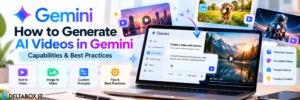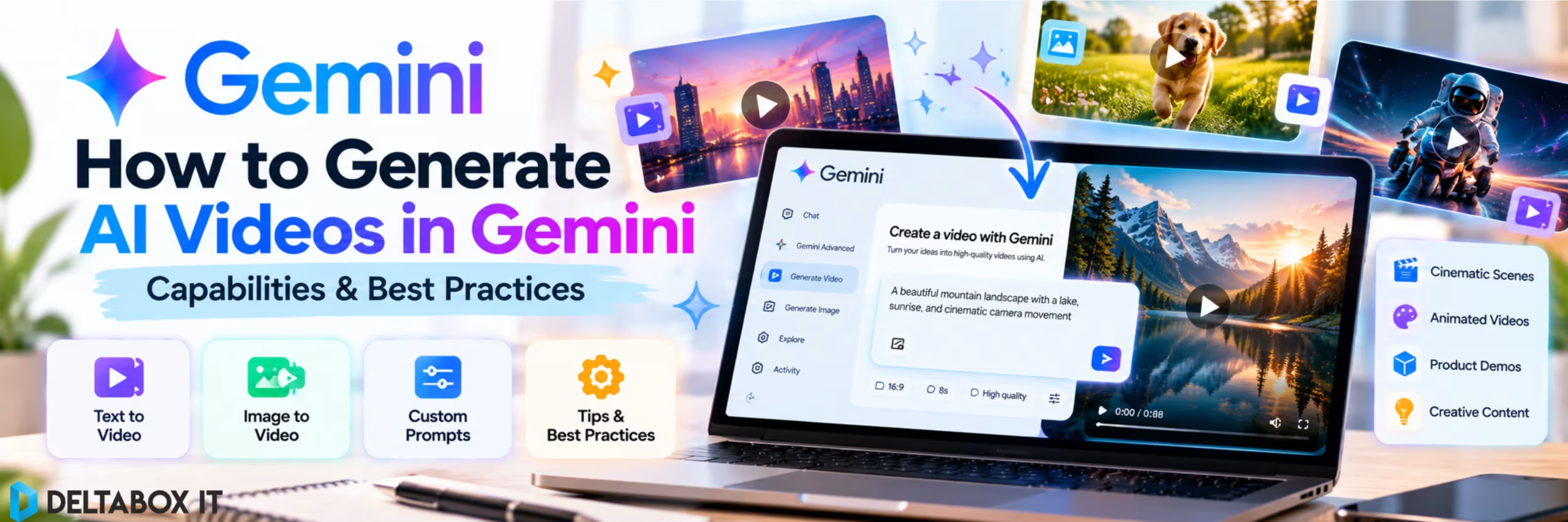

Yes. Gemini can create AI videos from text prompts, images and, in supported workflows, existing video.
Google’s current video-generation experience in Gemini Apps uses Gemini Omni, its latest multimodal video model. Instead of only describing a scene, you can combine text, images and video references, generate audio with the video and continue editing the result through follow-up prompts.
That makes the Gemini AI video generator useful for more than producing a single experimental clip. It can help with social-media concepts, product visualisation, educational scenes, storyboards and early-stage marketing ideas.
However, there are important limits.
Video generation is one of Gemini’s more compute-intensive features, access depends on your Google AI plan or eligible Workspace account, and usage allowances can change. AI-generated videos can also contain visual, physical or factual errors.
This guide explains how Gemini makes AI video using prompt-based instructions, what Gemini Omni can do and when the feature is genuinely useful.
Quick Answer: Can Gemini Make AI Videos?
Yes. Current Gemini Apps can generate and edit videos using Gemini Omni.
| Capability | Gemini Video Support |
|---|---|
| Text prompt to video | Yes |
| Image to video | Yes |
| Use multiple image references | Yes |
| Video-to-video editing | Supported in eligible regions |
| Edit generated video with prompts | Yes |
| Change objects or scenes | Yes |
| Camera-angle changes | Supported through prompting |
| Audio generation with video | Yes |
| Aspect-ratio control | Yes |
| Templates | Yes |
| Free Gemini App video generation | Requires an eligible Google AI plan for personal accounts |
The main limitation is that video generation consumes substantially more usage capacity than ordinary text chat.
What Is Gemini Omni?
Older Gemini video tutorials may refer mainly to Veo 2 or Veo 3.1. Google’s current Gemini Apps documentation describes Gemini Omni as its latest AI video-generation model.
Omni combines Gemini’s multimodal reasoning with generative media capabilities. It can work with text, images and video as input and create a new video based on those instructions.
The biggest change is that video creation is becoming conversational.
Instead of generating one clip and starting again whenever something looks wrong, you can continue the conversation:
Keep the same scene but move the camera closer to the product.
Then:
Replace the background with a modern office and make the lighting warmer.
This multi-turn editing workflow makes Gemini more useful for creative iteration than a traditional one-prompt generator.
How to Create an AI Video in Gemini
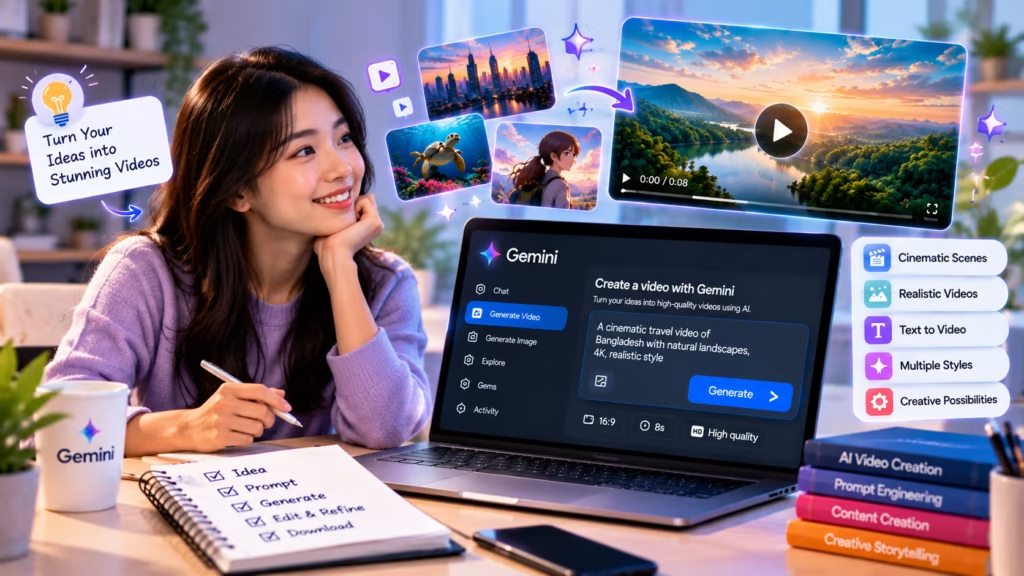
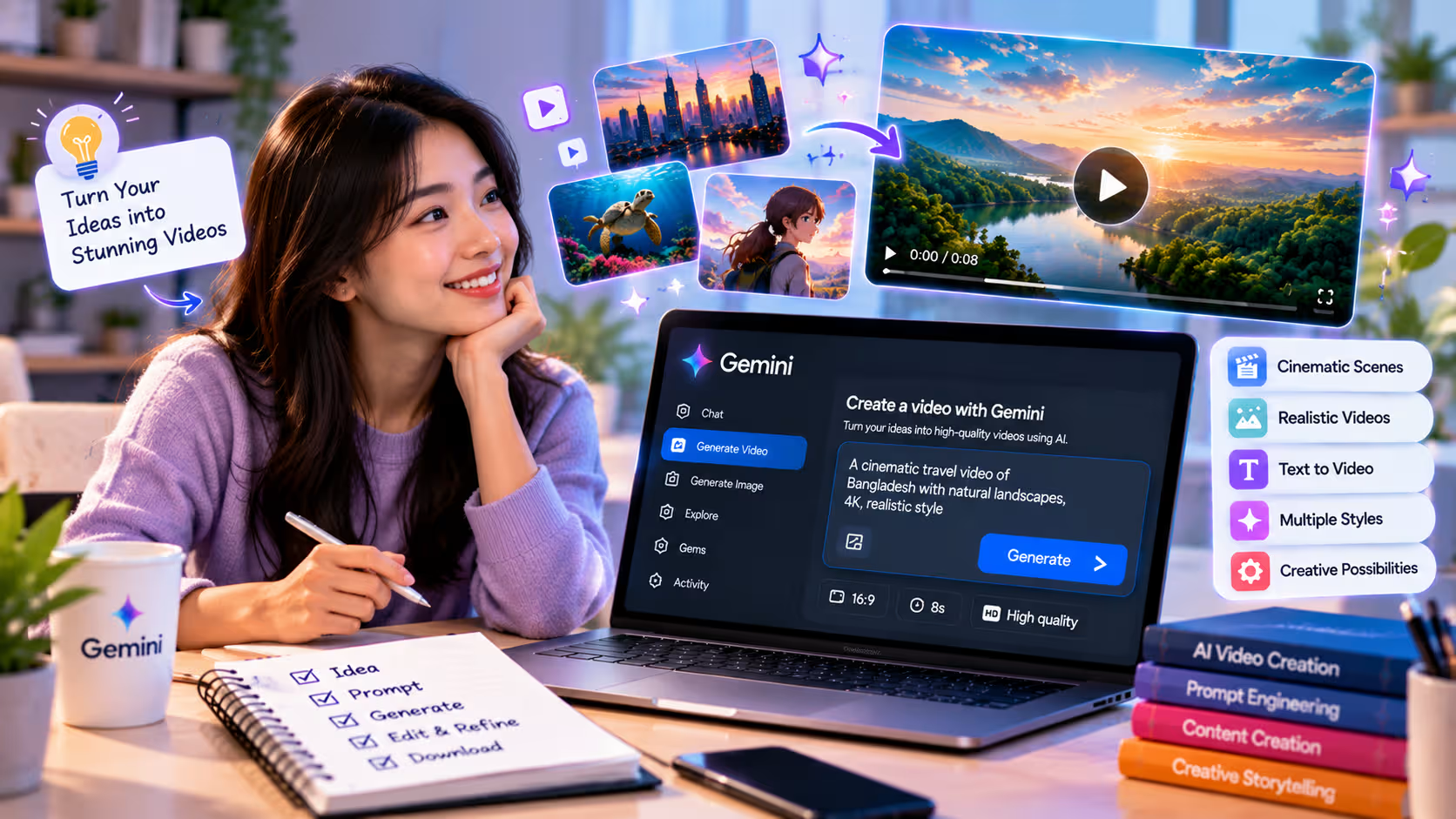
For a personal Google Account, video generation in Gemini Apps currently requires an eligible Google AI plan.
Once the feature is available, open Gemini and choose the video-creation option.
Then describe what should happen.
For example:
Create a cinematic video of a university student entering a modern library, opening a laptop and beginning to study. Warm morning sunlight through large windows, realistic movement, slow camera push-in and a calm academic atmosphere.
Gemini then generates the video from the description.
You can also upload reference material. Gemini currently supports using an existing video and multiple images in supported video-generation workflows.
If you are still learning basic Gemini prompting, the How to Use Gemini AI beginner’s guide provides a broader starting point.
How to Write Better Gemini Video Prompts
A good video prompt needs more information than a simple image prompt because movement happens over time.
A useful structure is:
Subject + action + environment + camera movement + visual style + audio + aspect ratio
For example:
Create a realistic video of a silver smartwatch rotating slowly on a black studio table. The camera moves from a wide three-quarter angle into a close-up of the screen. Use soft cinematic lighting and realistic reflections. Add subtle ambient electronic sound. Landscape format.
The action tells Gemini what should change during the clip.
The camera instruction helps define how viewers experience the scene.
Visual style controls the overall look.
Audio instructions are useful when sound is relevant.
If your prompt simply says:
Make a video of a smartwatch.
Gemini has to make far more creative decisions on its own.
Can Gemini Turn Images Into Videos?
Yes.
You can provide reference images and ask Gemini to animate or incorporate them into a video.
For example, if you already generated a product concept image, you could ask:
Use this image as the visual reference. Create a cinematic product video where the camera slowly circles the product while soft light moves across its surface. Preserve the product design and colours.
Gemini’s current video workflow can accept up to several image references alongside supported video input.
This is useful when visual consistency matters.
Rather than describing the same character, product or environment from scratch every time, references give Gemini additional context.
If you need to create the source image first, see How to Create Images With Gemini AI for practical prompting and composition techniques.
Can Gemini Edit an Existing Video?
Gemini Omni also supports video-to-video editing in eligible locations.
You can upload a video and request specific changes using normal language.
For example:
Keep the person’s movement unchanged but replace the background with a professional office.
Or:
Change the camera perspective slightly and make the scene look like early evening.
You can continue refining the result through multiple prompts rather than performing every edit in traditional video-editing software.
There are regional restrictions on uploading videos for video-to-video editing, so availability should be checked inside your account.
Gemini also does not replace a complete professional editor.
For frame-accurate cuts, detailed audio mixing, timelines, colour grading or precise typography, tools such as Premiere Pro, DaVinci Resolve or other conventional editors may still be necessary.
Can Gemini Generate Audio With AI Videos?
Yes. Gemini’s current video-generation workflow allows users to request audio along with generated video.
That means your prompt can describe not only what viewers see but also what they should hear.
For example:
Create a rainy nighttime street scene with a slow tracking shot. Include realistic rainfall, distant traffic and subtle footsteps. No music.
Audio generation can help a short AI clip feel more complete without requiring a separate sound-generation step.
However, generated speech, environmental sound and timing should still be reviewed carefully.
For commercial work, check every final video before publishing rather than assuming generated audio is accurate or appropriate.
What Are Gemini AI Video Limits?
Video generation requires significantly more computing resources than ordinary text prompts.
Google currently uses compute-based limits in Gemini Apps. The amount of usage consumed can depend on the feature, model, prompt complexity and conversation length.
Google specifically categorises video generation as a high-usage activity.
Paid Google AI plans provide higher access than standard usage. Google AI Pro currently receives higher overall Gemini usage capacity than accounts without an AI plan, while Ultra offers further increases.
That does not mean a fixed number of videos is guaranteed indefinitely.
Exact allowances can change depending on Google’s product policies, system capacity and the particular video workflow.
For that reason, avoid purchasing a subscription based on an old article claiming a permanent number of videos per day.
Is Gemini AI Video Generation Free?
There is an important distinction.
Inside Gemini Apps, personal-account video generation currently requires a Google AI plan.
However, Google has also introduced Gemini Omni video creation through Google Vids, where Google now offers free HD video-generation functionality to users with a Google Account.
The two experiences should not be treated as identical.
Gemini Apps focuses on conversational generation and editing inside Gemini.
Google Vids is a broader video-creation and editing workspace.
So if your goal is simply to experiment with AI-generated video without upgrading Gemini, Google Vids may also be worth checking.
Practical Gemini AI Video Use Cases
The best use of AI video is often not producing an entire finished advertisement from one prompt.
It is creating difficult or time-consuming visual material quickly.
A content marketer could generate short concept clips before committing to a larger production.
A teacher could visualise a historical, scientific or abstract concept.
A small business could explore product-presentation ideas.
A social-media creator could generate short visual sequences for reels or Shorts.
A designer could transform a static concept image into a moving presentation.
Gemini can also help build storyboards and test different camera directions before conventional production begins.
In these workflows, AI works as a rapid creative prototype rather than automatically replacing filming and editing.
What Can Go Wrong With AI-Generated Video?
Current video models are improving quickly, but generated footage still needs review.
People may move unnaturally. Objects can change shape between frames. Text may be incorrect. Product details can shift. Physical interactions may not behave realistically.
This becomes especially important when depicting real products or factual events.
Do not generate a concept video of a product feature and then present it as evidence that the real product behaves that way.
You should also have the right to use any reference images or videos you upload.
Privacy, copyright and personality rights still apply when AI is involved.
Gemini-generated video can also include Google’s SynthID provenance technology, so a lack of an obvious visual label should not be interpreted as meaning there is no AI-identification signal.
Google AI Pro and Gemini Video in Bangladesh
For Bangladesh users who want higher Gemini access for video generation, image creation, research and other AI workflows, DeltaBox IT currently provides Google AI Pro / Gemini AI access in Bangladesh.
Available package types and activation methods can vary, so review the live product page before ordering.
Google controls Gemini Omni availability, video-generation limits, model access, regional eligibility and other platform-side features. DeltaBox IT cannot override Google’s limits or guarantee a fixed number of AI video generations.
If video generation is only one part of your creative workflow, you can also compare other AI tools available through DeltaBox IT for research, image creation, writing and productivity.
DeltaBox IT is an independent third-party digital subscription provider and does not own, operate or develop Google Gemini.
Frequently Asked Questions
Can Gemini Make an AI Video From a Text Prompt?
Yes. Gemini Omni can generate videos from text instructions through supported Gemini Apps accounts.
Can Gemini Create a Video From an Image?
Yes. You can provide image references and ask Gemini to use them when creating the video.
Can Gemini Edit Videos Using Prompts?
Yes, video-to-video and conversational editing are supported in eligible Gemini Omni workflows, although regional restrictions can apply.
Does Gemini Generate Sound With Videos?
Yes. You can ask Gemini to generate audio as part of the video-generation request.
Do I Need Google AI Pro to Create Videos?
Personal users need an eligible Google AI plan for video creation inside Gemini Apps. Google also offers separate AI video functionality through products such as Google Vids.
Are Gemini AI Videos Unlimited?
No. Video generation consumes substantial usage capacity and is subject to plan-based and compute-based limits that can change.
Final Thoughts
Gemini can now create much more than a short video from a basic text prompt.
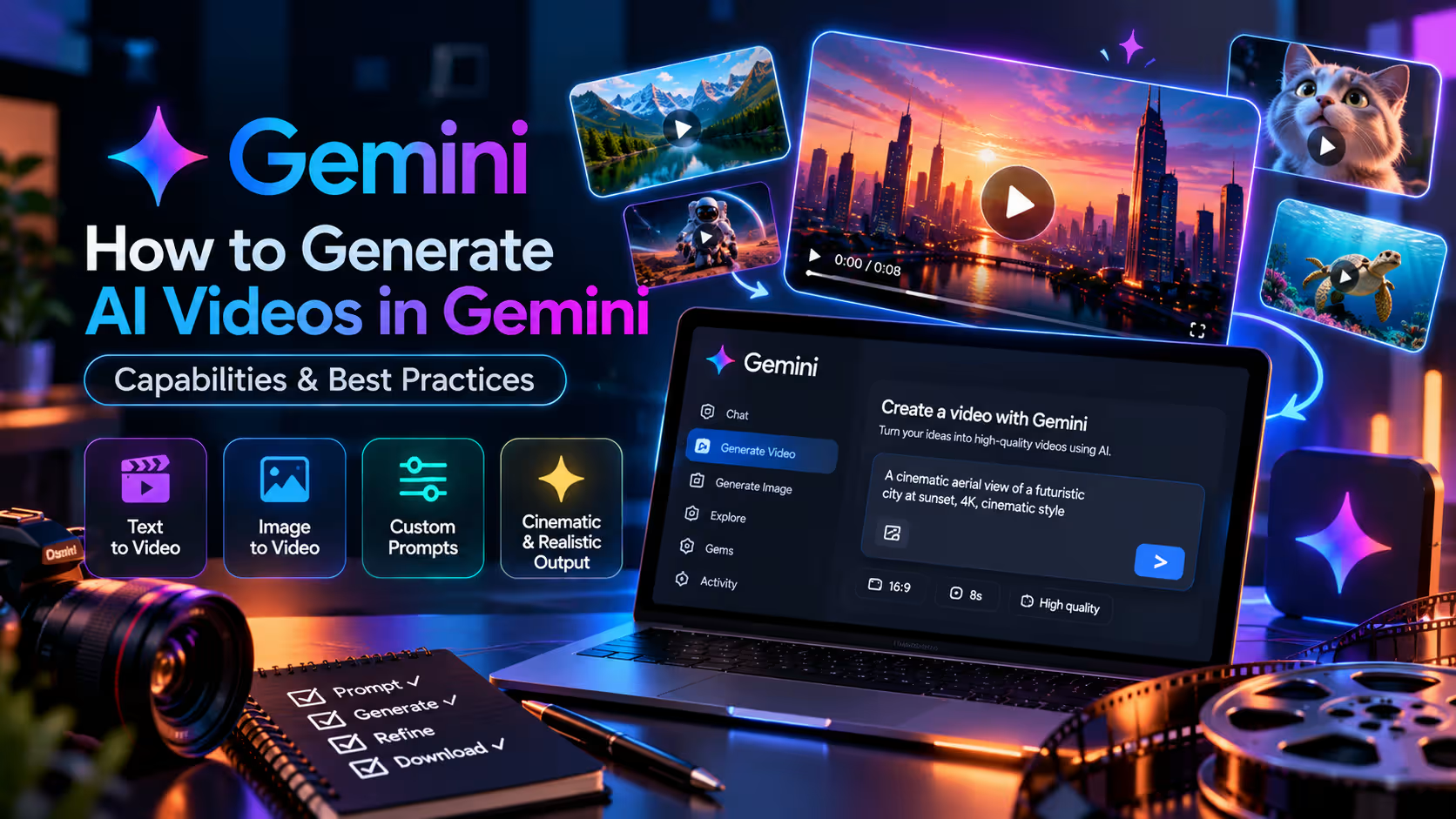 With Gemini Omni, you can combine text, images and video references, generate audio and continue editing the result conversationally.
The strongest prompts describe what happens over time: the subject, movement, environment, camera direction, style and sound.
For professional work, however, AI-generated video should still be treated as material that requires human review.
Use Gemini to accelerate concepts, create difficult scenes and explore ideas quickly. Then check movement, continuity, audio, factual accuracy and rights before publishing the final result.
The technology is becoming increasingly capable, but the creative direction—and the responsibility for what gets published—still belongs to the user.